
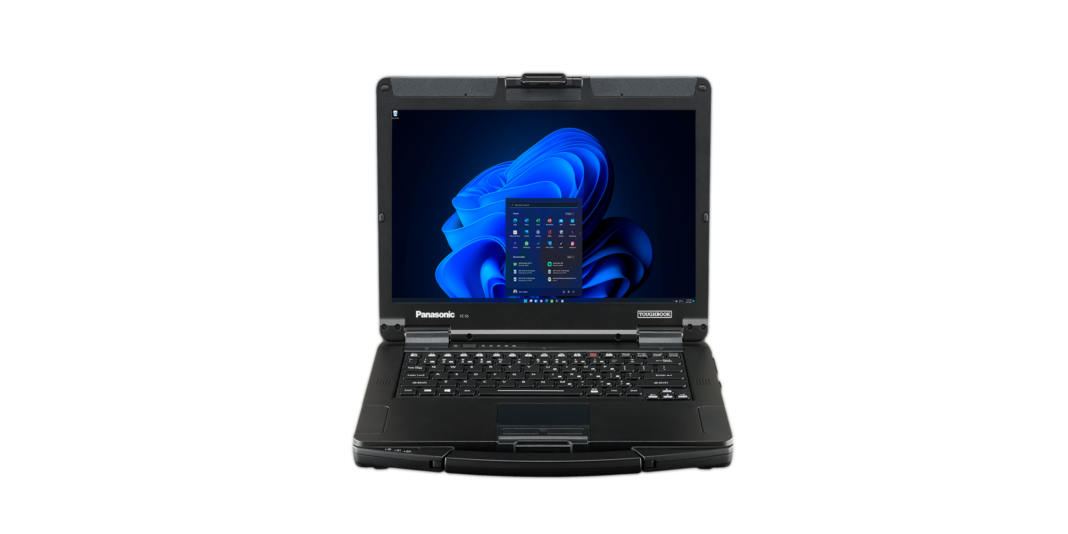
Replacing field computers involves more than choosing a newer model. For teams considering the Panasonic Toughbook FZ 56, the useful question is what must change around the laptop and what can remain in service. A clear upgrade plan connects the selected computer with existing accessories, applications, user habits, and support procedures.
That plan should begin before the final configuration is ordered. A display choice, graphics option, or expansion module can affect how the computer fits the job. Recording those choices early gives the purchasing team something concrete to verify instead of relying on a general description of the product family.
Inventory the Equipment That Must Stay in Service
Start with the hardware already used alongside the computers being replaced. Record dock and charger part numbers, connected peripherals, cables, and any vehicle mounting equipment. Include items kept in spare equipment cabinets, since those may become part of the next deployment.
Ask the supplier to confirm compatibility for each item that the organization intends to retain. Keep the response tied to the exact proposed laptop configuration. A statement about compatibility across a product family should not replace a check of the particular equipment involved.
One documented FZ-56 distinction makes this especially important: Panasonic states that the discrete graphics model has no docking connector and is not compatible with docks. The same footnote also limits which areas are user-replaceable on that version. A graphics choice therefore belongs in the deployment discussion, not only in a performance comparison.
Separate confirmed reuse from items that still need an answer. Where replacement equipment is necessary, add it to the quote and installation plan. This keeps the project budget connected to the complete working setup rather than the computer price alone.
Choose Options by Following the Work
Ask users to demonstrate the tasks they perform most often, including anything that requires connected equipment. Note which parts involve typing, reading diagrams, entering information by touch, or transferring files. Use those observations to decide which options deserve consideration.
Panasonic lists a 14-inch, 16:10 WUXGA display for the FZ-56, with a 1000-nit gloved-touch option. Treat that as a choice to evaluate with the actual application and working conditions. Do not assume that every offered unit includes touch input or the same display configuration.
The manufacturer’s product information also lists optional connections and expansion choices. Turn each required function into a question about the quoted unit: is it installed, does it need a separate module, and what other choices does it affect? Ask for a final configuration summary that answers those questions together.
Avoid ordering a feature solely because it appears in a broad specification list. If no current task calls for it, document the reason for including it or leave it out of the requirement list. Future needs can be considered, but they should be identified as plans rather than described as confirmed present requirements.
Give IT and Field Users Different Checks
IT and field users should test the same proposed setup, but their responsibilities differ. IT can review the operating system, application requirements, drivers, management tools, and access arrangements. Users can assess the day-to-day sequence of opening tasks, connecting equipment, entering information, and carrying the device.
Agree on the trial before equipment arrives so feedback stays specific. “The form is difficult to use with these settings” gives the team something to investigate. A general comment that a device feels different provides less direction for a purchasing decision.
Use a short acceptance checklist to capture the results:
- Record the tested model, selected options, installed software, and accessories.
- Complete the normal sign-in process and open each required application.
- Connect the actual peripherals and verify the functions used on the job.
- Check display readability and input with the intended application settings.
- Assess charging and battery behavior during a representative work period.
- Document any issue, its owner, and the result of the follow-up check.
Keep the trial within normal use and the manufacturer’s instructions. Environmental ratings are not an invitation to conduct improvised damage tests. The purpose is to establish whether the chosen setup supports the work, while relying on appropriate documentation for its tested limits.
Build the Handover Into the Purchase
Before a wider rollout, decide how the approved configuration will be recorded and repeated. Attach the final equipment list to the purchase record and identify any permitted substitutions. If a later quote changes an option, review the affected compatibility or user checks before accepting it.
Prepare a brief handover covering the selected accessories, charging arrangements, support contact, and routine procedures. Give users a way to report issues with enough detail for IT to reproduce them. Keep spare equipment labeled so the team can distinguish confirmed replacements from items that merely look similar.
The Panasonic Toughbook FZ 56 should enter service as a documented working setup, with its choices and limits understood. When discussing an upgrade with Tough Rugged Laptops, bring the accessory inventory, application requirements, and trial findings to the quote review. Order the configuration that has been checked against those needs, then preserve the record for the next replacement cycle.